Description
WooCommerce Email Blacklist Plugin allows store owners to automatically block and reject orders from specific email addresses during checkout and payment processing.
This plugin helps protect your store from fraud, spam orders, abuse, and repeat offenders by detecting restricted billing or payer email addresses and rejecting the order immediately after payment confirmation.
When a restricted email is detected, the order is automatically marked as rejected, an audit note is added for administrators, and an optional notification email is sent to the customer explaining the rejection.
The plugin integrates seamlessly with WooCommerce and runs silently in the background without affecting legitimate customers.
Key Features
-
Block orders by specific email addresses
-
Detect restricted billing and payment email addresses
-
Automatically reject orders that match blacklist rules
-
Add clear audit notes to rejected orders for admin review
-
Optional rejection email sent to customers
-
Lightweight, fast, and no third-party dependencies
-
Uses native WooCommerce hooks and APIs
How It Works
-
Store admin adds restricted email addresses in plugin settings
-
Customer completes checkout using a blocked email
-
Order is automatically rejected after payment
-
Admin notes and optional customer notification are generated
Use Cases
-
Prevent repeat fraudulent buyers
-
Stop spam or automated orders
-
Block known abusive or chargeback-prone customers
-
Enforce store-level email restrictions
Compatibility
-
Requires WooCommerce
-
Compatible with most payment gateways
-
Works with standard WooCommerce checkout flow
Current Version
Version: 1.0.0
Stable initial release
What You Get
-
Ready-to-install WordPress plugin
-
Simple and clean codebase
-
Lifetime usage
-
Lifetime updates
Installation
-
Upload the plugin folder to the
/wp-content/plugins/directory, or install via the WordPress plugin installer. -
Activate the WooCommerce Email Blacklist Plugin through the “Plugins” screen in WordPress.
-
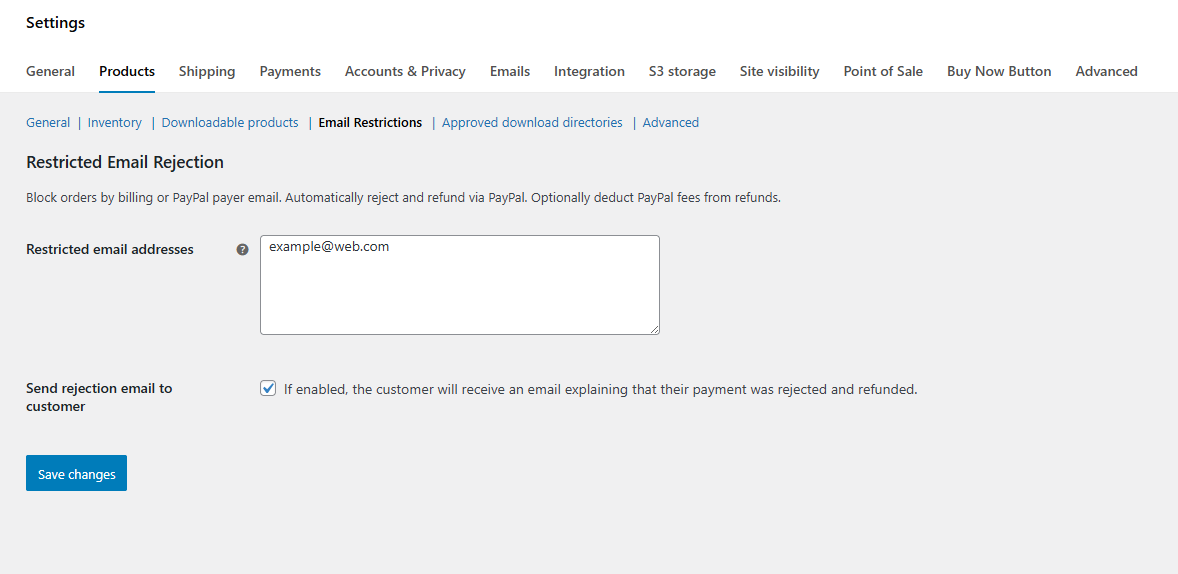
Go to WooCommerce > Settings > Products > Email Restrictions to configure restricted emails and settings.
-
Add email addresses (one per line or separated by commas) that you want to block from placing orders.
-
Save changes.
Once configured, any order placed with a restricted email address will be automatically rejected.
Instant Download After Checkout
After completing your checkout, the plugin is available for instant download.
No waiting time. Download, install, and activate immediately.
Frequently Asked Questions
1. How does this plugin work?
This plugin checks the billing email (and payer email when available) after an order is placed. If the email matches one in the blacklist, the order is automatically marked as rejected and a notification email can be sent.
2. Where do I add restricted email addresses?
Restricted emails can be added under WooCommerce > Settings > Products > Email Restrictions & Refunds in the “Restricted email addresses” field.
3. Can I block entire domains?
Yes — entering a domain like @example.com will block any email address from that domain.
4. Will customers still be charged?
Customers are charged normally at checkout. If the email is restricted, the order is rejected afterward. You can disable the email notification or customize how you handle rejected orders on your store.
5. Is the rejection email customizable?
Yes. The plugin sends a standard rejection email, but you can modify the email text using WordPress filters or template overrides if needed.
6. Does this affect other WooCommerce functionality?
No. The plugin only intervenes when a restricted email is detected. Regular orders from allowed emails proceed normally.
7. Can I see why an order was rejected?
Yes. The plugin adds an admin order note indicating that the order was rejected due to a restricted email.
8. Can this plugin block guest checkouts?
Yes. Any checkout that uses a restricted email (guest or registered user) will be blocked and rejected.
9. Does this store additional personal data?
No. It uses standard WooCommerce order data and does not store extra personal information.
10. Can I disable the rejection email?
Yes. There is a setting to enable or disable the rejection email sent to customers.